
Xmake Getting Started Tutorial 6, Developing and Building Qt Programs
xmake is a lightweight and modern c/c++ project building tool based on Lua. It's main features are: easy to use syntax, easy to use project maintenance, and a consistent build experience across platforms.
xmake fully supports the maintenance and building of Qt5 projects. This article will guide you through how to maintain various types of Qt projects with xmake.
Preface
Qt is a cross-platform C++ graphical user interface application development framework developed by Qt Company in 1991. It has its own IDE program: Qt Creator, and its own build program: qmake. It seems that newer versions are planning to fully switch to cmake for maintenance.
Despite this, xmake still provides support for Qt development. Combined with xmake-vscode/xmake-idea and other plugins, users can integrate and develop Qt programs in their familiar editors and IDEs, providing a consistent development experience across different platforms.
Preparing the Build Environment
First, we need to prepare the Qt development environment. If you haven't installed the Qt SDK yet, go to the Qt official website to log in and download the installation package: https://www.qt.io/, or pull the Qt source code yourself and compile a static version SDK and toolchain.
Usually, if you use the official Qt SDK installation package and the installation directory uses the default path, xmake will try to detect it even without configuring the Qt SDK path. It can usually be detected. If it cannot be detected, we can try to configure it manually:
$ xmake f --qt=/home/xxx/qtsdkOr set it to a global path to avoid having to configure it every time you switch compilation modes:
$ xmake g --qt=/home/xxx/qtsdkCreating Template Projects
xmake has built-in empty project templates for various Qt projects. We can quickly create them using the xmake create command.
Note: Since xmake's master latest version, which is the unreleased v2.2.9 version, has upgraded Qt templates and build rules, this article mainly explains based on the latest version. The old templates and rules are still backward compatible. If you want to learn more, you can check the relevant documentation: Qt Project Development Documentation
Creating QuickApp Applications
Let's first create an empty quickapp project with qml. Just run the following command:
$ xmake create -t qt.quickapp test
create test ...
  [+]: xmake.lua
  [+]: src/main.qml
  [+]: src/main.cpp
  [+]: src/qml.qrc
  [+]: .gitignore
create ok!
xmake will generate a Qt project with xmake.lua. The xmake.lua content is also very simple:
target("test")
    add_rules("qt.quickapp")
    add_headerfiles("src/*.h")
    add_files("src/*.cpp")
    add_files("src/qml.qrc")
Except for adding source files, everything else is basically the same as the previous executable program project. The only difference is using the built-in Qt build rule add_rules("qt.quickapp") instead of set_kind("binary").
Actually, the qt.quickapp rule internally sets the binary type in the end, but additionally adds some build rules that only Qt needs, such as: specific links, flags, and includedirs, etc.
Next, let's try to compile this project:
$ xmake
checking for the architecture ... x86_64
checking for the Xcode directory ... /Applications/Xcode.app
checking for the SDK version of Xcode ... 10.15
checking for the Qt SDK directory ... /Users/ruki/Qt5.13.2/5.13.2/clang_64
checking for the Qt SDK version ... 5.13.2
[  0%]: ccache compiling.release src/main.cpp
[ 49%]: compiling.qt.qrc src/qml.qrc
[100%]: linking.release test
The build rule for *.qrc files is also maintained in the qt.quickapp build rule, so only by setting this rule can qrc files be compiled normally.
Finally, let's try to run it:
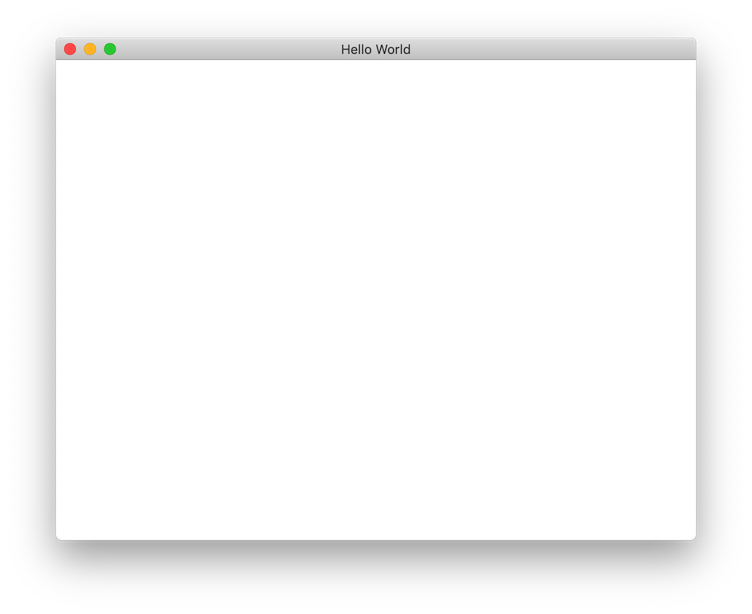
$ xmake runThe running effect is as follows:
Creating WidgetApp Applications
Creating a widgetapp project is basically the same as the quickapp method above, just change the template name:
$ xmake create -t qt.widgetapp testThe xmake.lua content inside also just changes the qt.quickapp rule to the qt.widgetapp rule. In addition, the UI description file changes from .qrc to .ui, with no other differences.
target("qt_widgetapp")
    add_rules("qt.widgetapp")
    add_files("src/*.cpp")
    add_files("src/mainwindow.ui")
    add_files("src/mainwindow.h")  -- Add header file with Q_OBJECT meta
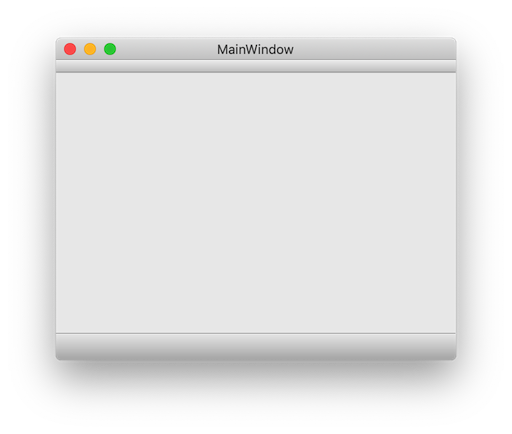
The running effect is as follows:
Creating Statically Linked Applications
By default, the SDK downloaded from the Qt official website is based on dynamic libraries. If the user uses a static version Qt SDK compiled from Qt source code, the created Qt project type must also correspond to the static version, because the two handle linking differently.
For the template name, append _static to create:
$ xmake create -t qt.widgetapp_static testThis creates a WidgetApp project based on a static QtSdk. The build rule inside will also be changed to add_rules("qt.widgetapp_static"), with no other differences. The same applies to QuickApp projects.
Creating Other Qt Projects
In addition to QuickApp and WidgetApp projects, xmake also supports the creation and compilation of other Qt projects, such as: console programs, static libraries and dynamic libraries based on Qt, etc.
For specific project templates, we can check the template list in the help menu:
$ xmake create --help
Usage: $xmake create [options] [target]

Create a new project.

Options:
    -t TEMPLATE, --template=TEMPLATE       Select the project template id or
                                           name of the given language.
                                           (default: console)
                                               - console: c++, go, dlang, cuda,
                                           rust, swift, objc, c, objc++
                                               - qt.console: c++
                                               - qt.quickapp: c++
                                               - qt.quickapp_static: c++
                                               - qt.shared: c++
                                               - qt.static: c++
                                               - qt.widgetapp: c++
                                               - qt.widgetapp_static: c++
For more information on other Qt projects, see xmake's official documentation: Qt Project Build Documentation
Running and Breakpoint Debugging
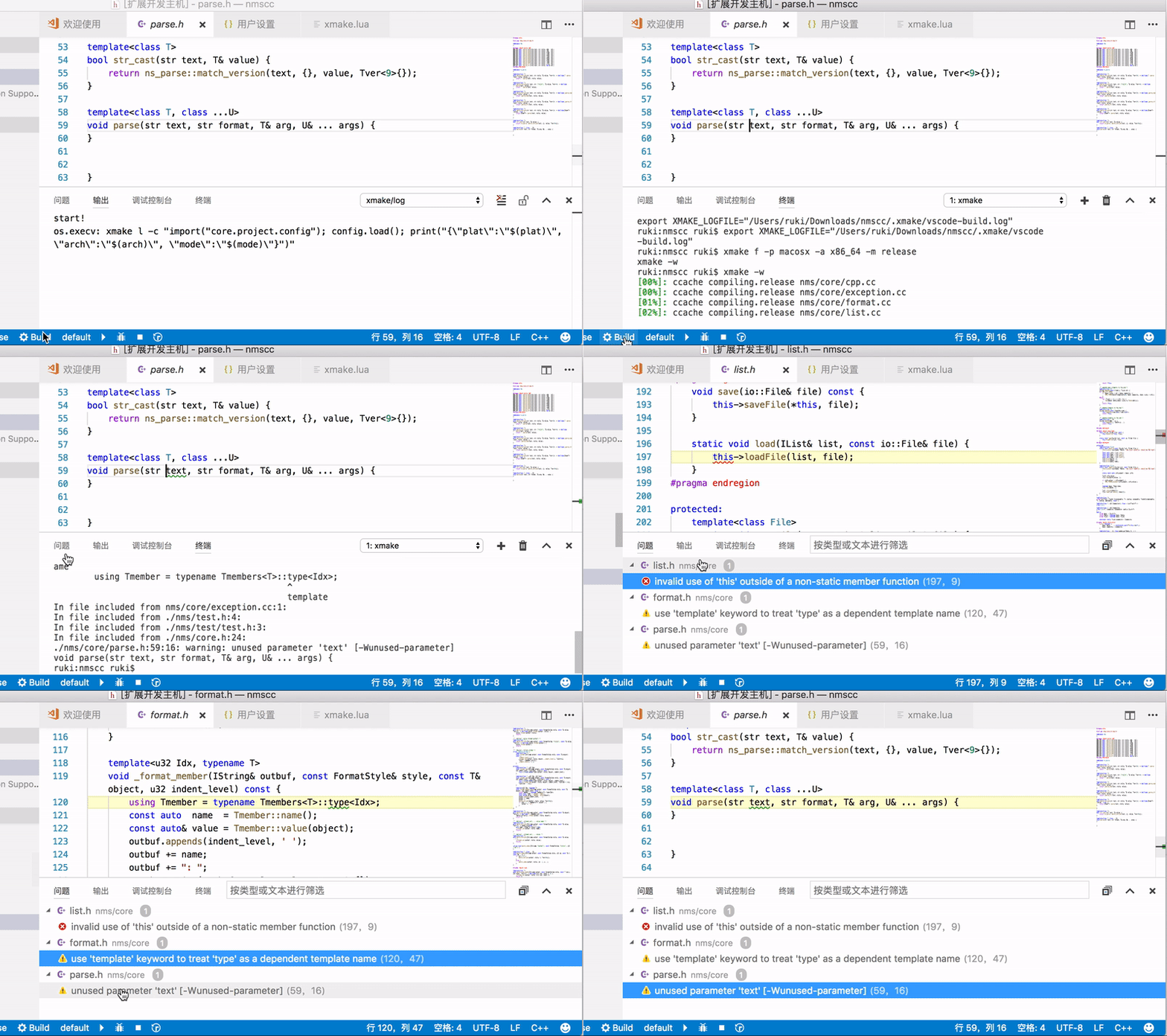
We can use the xmake run -d command to load gdb/lldb debugger, or use xmake-vscode plugin's breakpoint debugging support to develop and debug Qt programs. You can read the previous article: Xmake Getting Started Tutorial 3, Running and Debugging Target Programs
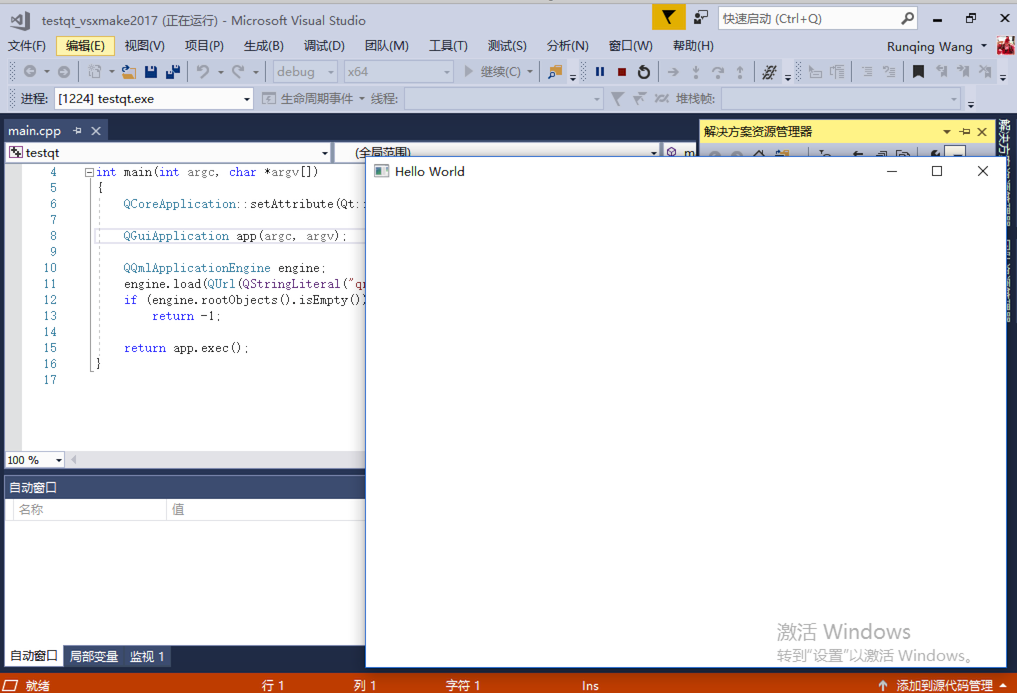
In addition, if it's a Windows platform, we can also generate a VS project and use VS's built-in debugging features for breakpoint debugging, which is more convenient:
$ xmake project -k vsxmakeAfter generating the VS project based on xmake, open the VS project and click debug run:
Developing Android Programs
xmake currently fully supports compiling Android versions of Qt projects. The entire Qt project including xmake.lua is exactly the same as the previous examples, and no special settings are needed.
What we need to do is simply switch to the Android compilation platform to compile it. However, since we need to generate an APK package, after executing xmake compilation, the Qt build rule will automatically perform a deploy step for the Android program, which is to call Qt's internal androiddeployqt program to generate the APK package.
Therefore, in addition to the Android NDK, we also need to depend on the Android SDK. Specify it by setting the --android_sdk parameter:
$ xmake f -p android --ndk=~/Downloads/android-ndk-r19c/ --android_sdk=~/Library/Android/sdk/ -c
$ xmake
[  0%]: compiling.qt.qrc src/qml.qrc
[ 50%]: ccache compiling.release src/main.cpp
[100%]: linking.release libappdemo.so
[100%]: generating.qt.app appdemo.apk
The above configuration and build process can easily compile the previous QuickApp and WidgetApp projects into Android Apps. In addition, the qt rule internally customizes the install program for the Android version, which can easily install the Qt APK to the device.
$ xmake install
installing appdemo ...
installing build/android/armv7-a/release/appdemo.apk ..
success
install ok!
The effect after installation and running is as follows:

For information on how to configure the Android build environment, read the previous article: Xmake Getting Started Tutorial 5, Introduction to Android platform compilation
Editor and IDE Integration
xmake also provides plugin integration support for major commonly used editors. With these plugins, you can develop and build Qt programs in your most familiar editor.
Developing and Debugging Qt Programs in VSCode
Plugin address: xmake-vscode
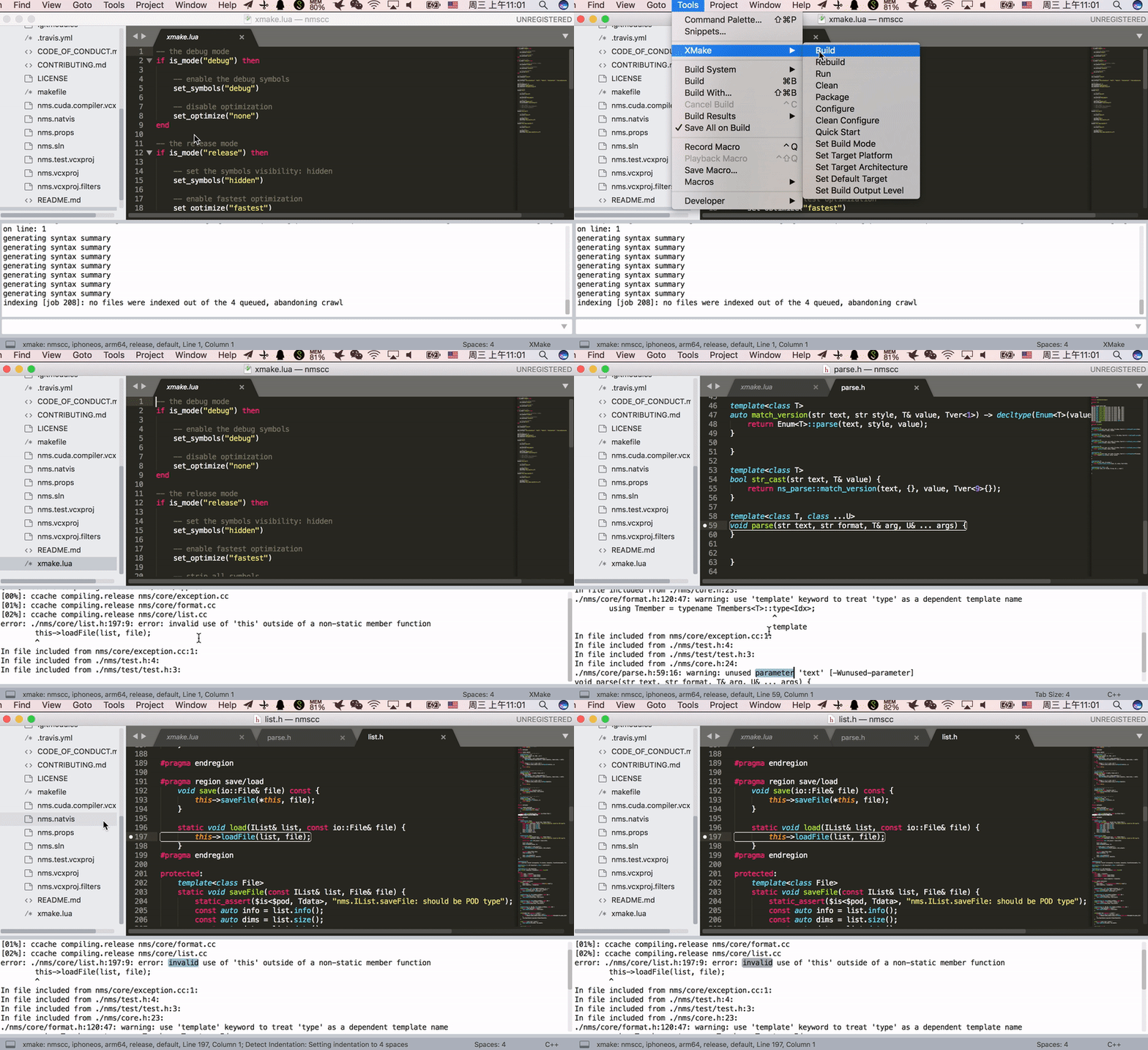
Developing Qt Programs in Sublime Text
Plugin address: xmake-sublime
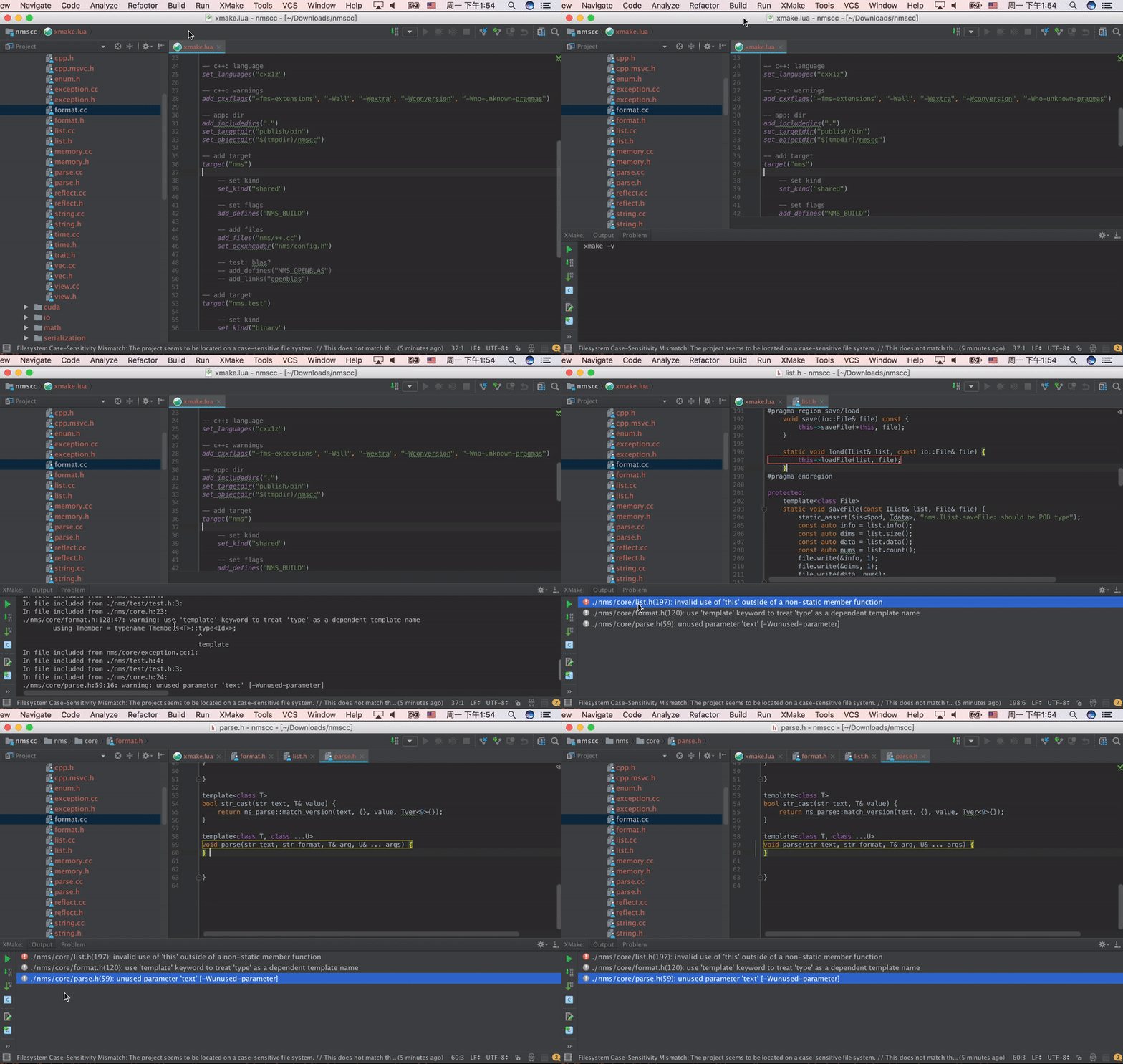
Developing Qt Programs in Idea/CLion/Android Studio
Plugin address: xmake-idea
Developing and Debugging Qt Programs in Visual Studio
This is the method mentioned above for integrating xmake by generating a VS project:
$ xmake project -k vsxmakeAfter generating the VS project based on xmake, open the VS project and click debug run:
For specific details, see the plugin documentation: Using xmake to generate VS projects